
Free Project Plan Template (Excel & Google Sheets) — 1‑Page Quick Start


When you're kicking off a new initiative, you don't need another 20‑column spreadsheet—you need a clean one‑pager you can open, edit, share, and print in minutes. This 1‑page template for Excel helps PMs, team leads, founders, and consultants turn ideas into an actionable timeline without wrestling with formatting.
Download the file above (Excel) or make a Google Sheets copy; a ready‑to‑print PDF is included. You'll get a compact task list and auto‑updating mini Gantt view on a single page, plus two sample tasks you can duplicate to get moving fast. Enter the project name, dates, milestones, tasks, durations, owners, and simple dependencies; statuses and priorities roll up at a glance for stakeholder updates.
Built for speed and compatibility, fonts and page size are tuned for A4 and US Letter, and the layout holds up across Excel and Sheets. This project plan template keeps planning lightweight so you can focus on delivery—not spreadsheets.
Get the Template — Download & Open (Above the Fold)
Grab your 1-page project plan template in the format that fits your workflow. This free download includes an Excel (.xlsx) file and a ready-to-copy Google Sheets version, plus a printable PDF for quick handouts and stakeholder reviews. Keep everything on a single page so kickoff, milestones, tasks, owners, and status are clear at a glance.
Whether you prefer desktop reliability or online collaboration, the file structure is identical across formats. Use it as a one page project plan to align dates, owners, and dependencies without bloating your toolset. Below, choose Excel for offline speed or Google Sheets for fast sharing and real-time edits—then follow the quick steps to open, copy, and print cleanly.
How to make a Google Sheets copy / open in Drive
To create your own editable version in Google Sheets, sign in to your Google account and open the link to the view-only template. Go to File > Make a copy, choose your Drive folder, and rename it (for example, ProjectName — 1-Page Plan). This ensures you have full edit rights and that updates are stored in your Drive.
Next, set up sharing. Click Share in the top-right corner, invite teammates by email, and set permissions: Editor for collaborators who'll add tasks and owners, or Commenter for stakeholders who'll leave feedback. If you're working with external partners, use Viewer or Commenter and restrict downloading if needed. Add a short note in the file description (File > Details) so teammates know this is the master plan.
Before you start filling in dates, open File > Settings and confirm your Locale, Time zone, and Calculation settings match your region and working hours. This prevents date shifts and keeps durations accurate. Freeze the header row (View > Freeze > 1 row) so column labels stay visible as your task list grows. If you want a local copy for backups, go to File > Download and select Microsoft Excel (.xlsx) or PDF for easy printing.
Open and print: quick tips for Excel/Sheets compatibility (fonts, page size)
To keep the one-pager consistent across Excel and Google Sheets, use common fonts and a standard page size. Set the font to Arial or Calibri (both render similarly across platforms). Choose Letter (8.5" × 11") in the US or A4 elsewhere, then keep margins Normal for a clean fit. This avoids line breaks that can push the plan to two pages.
Control the layout before you print. In Excel, set the print area to the template range, choose Landscape orientation, and use Fit to 1 page wide by 1 page tall if your content grows. In Google Sheets, use File > Print, pick Landscape, scale to Fit to width, and uncheck Gridlines for a polished report. Add a light header with the project name and a footer with the date or page number if you need traceability.
Use the quick mapping below to standardize settings:
| Setting | Excel (Windows/Mac) | Google Sheets |
|---|---|---|
| Font | Home > Font > Arial or Calibri | Toolbar > Font > Arial or Calibri |
| Page size | Page Layout > Size > Letter or A4 | File > Print > Paper size > Letter or A4 |
| Orientation | Page Layout > Orientation > Landscape | File > Print > Orientation > Landscape |
| Scaling | Page Layout > Scale to Fit > 1 page wide, 1 page tall | File > Print > Scale > Fit to width |
| Gridlines | Page Layout > Sheet Options > Gridlines (uncheck Print) | File > Print > Formatting > Uncheck Show gridlines |
| Headers/Footers | Insert > Header & Footer (add Project + Date) | File > Print > Headers & footers (toggle options) |
Micro-conclusion: You now have the template in your preferred format and know how to copy, share, and print it cleanly. Next, jump into filling the plan with a simple sequence of fields and steps—see How to Use the Template (Quick 5-Step Guide) for a fast walkthrough.
How to Use the Template (Quick 5-Step Guide)
This one-page guide helps you set up, share, and track your plan in minutes—without wrangling multiple tabs or add-ons. You'll start by naming the effort, locking dates, and plotting key milestones so everyone has a shared horizon. Next, you'll list tasks with realistic durations and simple dependencies that auto-sequence your schedule. Finally, you'll map owners, priorities, and statuses so accountability and progress are visible at a glance.
Whether you're in kickoff or midstream, the flow is the same: clarify scope, timebox the work, then connect tasks so timing changes ripple safely through your plan. Keep things lightweight: brief task names, clear dates, and intuitive labels beat long narratives. With this approach, your project plan template stays short, printable, and easy to update during standups or reviews.
Step 1 — Fill project name, dates and milestones
Start at the header. Enter a concise project name, sponsor (optional), and today’s version/date so stakeholders always know what they’re viewing. Set Start and End dates to define the planning window; these boundaries keep the Gantt and summaries scoped to the period you intend to manage. If your team spans time zones, standardize on a date format (e.g., YYYY‑MM‑DD) to avoid confusion.
Add 3–5 milestones to anchor expectations. Good milestones are outcome-based and verifiable (e.g., “Design approved,” “Beta live,” “Launch”). Place them at meaningful intervals—end of planning, first release, feature freeze, and launch—so they become natural checkpoints for demos or decision gates. Avoid milestone overload; too many can dilute focus and clutter the view.
Use the milestone rows or marker column to flag them visually. If the template supports a Gantt view, ensure milestones have zero duration so they render as diamonds and don’t skew timelines. Keep names short and action-oriented; if a milestone requires extra context, add it in a notes column rather than the title.
“The project life cycle is broken down into five project management phases: initiation, planning, execution, monitoring, closure. These phases are your road map as you and your team conquer complicated projects.” Atlassian
These phases map neatly to your milestones—initiation and planning up front, execution milestones midstream, and monitoring/closure markers near the end—making status reviews faster and clearer.
These phases map neatly to your milestones—initiation and planning up front, execution milestones midstream, and monitoring/closure markers near the end—making status reviews faster and clearer.
Step 2 — Add tasks, durations and dependencies
List tasks in clear, outcome-focused language (verb + object), grouped roughly by phase or workstream. Keep granularity consistent—aim for tasks that fit within 2–10 working days. This keeps the schedule responsive without micromanaging every hour. If you already have a backlog, consolidate related tickets into single planned tasks to maintain the one-page footprint.
Enter Duration for each task. If the template includes Start/End formulas, these will auto-calculate from the project Start and dependency links. Estimate in working days, not calendar days, to avoid weekend creep. When uncertain, use ranges in a notes column (e.g., “5–7d”) but commit a single planning value in Duration.
Add dependencies so the plan sequences correctly. A simple approach:
- FS (Finish-to-Start): Most common; Task B starts after Task A finishes.
- SS (Start-to-Start): Tasks begin together; useful for parallel kickoff.
- FF (Finish-to-Finish): Tasks must complete around the same time.
- SF (Start-to-Finish): Rare; avoid unless necessary.
If your sheet uses task IDs (e.g., 1.1, 1.2), reference them in a Dependency column (e.g., “FS:1.2”). Use lags for handoffs (e.g., “FS+1d”). Keep chains shallow; long dependency snakes signal risk. As you enter tasks, scan for bottlenecks—anything with many dependents is likely on the critical path and deserves buffer or early start. Finally, sanity-check the Gantt: look for overlaps that shouldn’t happen and gaps where teams will be idle.
Step 3 — Assign owners, set priorities and statuses
Every task needs one accountable Owner. Use team handles or initials consistently so filtering and pivoting stay clean. If multiple contributors are involved, keep them in a separate “Collaborators” or “Notes” field—single accountability avoids ambiguity. Next, set Priority to guide sequencing when trade-offs emerge; High, Medium, Low is usually enough, and color-coding helps in quick reviews.
Define Status values that match how your team works and keep them mutually exclusive. A simple, effective set is below.
| Status | Meaning |
|---|---|
| Not Started | Planned but no work begun |
| In Progress | Actively being worked |
| Blocked | Waiting on dependency/decision to proceed |
| Done | Completed and reviewed |
Update Status during standups; if “Blocked,” add a short reason and owner of the unblock action. Use Priority to break ties when resources are tight, and rebalance assignments if one owner holds multiple High items overlapping in time. This keeps throughput steady and avoids late surprises.
“Only 2.5% of companies manage to finish all of their projects successfully.” PPM Express
That sobering stat is why rigor around ownership and transparent Status is non-negotiable. Keep the board honest, escalate blockers within 24 hours, and align priorities weekly so the plan reflects reality—not wishful thinking.
In short, you set direction with dates and milestones, create flow with tasks and dependencies, and ensure execution with owners, priorities, and statuses. Next, make the view work even harder for you with filters, color rules, and a lightweight Gantt in Template Breakdown & Customization Tips.
Template Breakdown & Customization Tips

This section shows exactly how the one-page sheet is structured so you can read it at a glance, share it with stakeholders, and adapt it to your team’s workflow in minutes. We’ll unpack each field (what it tracks and how to fill it), preview built-in views like a simple Gantt and a clean task list, and finish with quick win customizations you can apply in Excel or Google Sheets. Whether you’re running a sprint, a marketing launch, or a client deliverable, this is the fastest way to make the project plan template fit your real-world needs without breaking its simplicity.
Field explanation (Start/End, Duration, Owner, Status, Dependencies)
Each field is designed to capture the essentials without clutter. Use the quick reference below, then see the tips to avoid common pitfalls and keep your dates and dependencies accurate.
| Field | What it controls | Accepted format | Tips |
|---|---|---|---|
| Start | Task kickoff date | Date (YYYY-MM-DD or local) | Set the earliest realistic start to prevent cascading delays. |
| End | Task finish date | Date (YYYY-MM-DD or local) | Align with milestones; avoid weekend end dates if teams don’t work. |
| Duration | Length of work (in days) | Number (days) | Keep it integer-based for quick calculations and Gantt clarity. |
| Owner | Single accountable person | Text (Name or @handle) | One owner per task; collaborators go in Notes to avoid confusion. |
| Status | Progress snapshot | Dropdown (Not started/In progress/Blocked/Done) | Keep labels short and consistent for easy filtering. |
| Dependencies | Tasks that must finish before this starts | Comma-separated IDs or row #s | Reference unique IDs to avoid breaking links when sorting rows. |
If you maintain both Duration and Start/End, choose one as the “source of truth.” A simple approach is to calculate Duration as End − Start + 1 (or NETWORKDAYS for business days) to keep bars accurate in the Gantt view. When dates move, verify durations still reflect reality.
For Dependencies, reference a unique Task ID column instead of row positions; it’s more stable when you sort or insert tasks. Use a comma-separated list (e.g., 12, 14) for multiple predecessors. If a task is “Blocked,” ensure its dependencies actually point to incomplete work—this simple hygiene prevents phantom blockers.
Statuses work best as a tight, shared vocabulary. Resist adding too many variants; a compact set speeds filtering, highlights bottlenecks, and keeps the summary views legible. Finally, keep Owner singular. If you need multiple contributors, list the accountable Owner and add helpers in a Notes column.
Built-in views & examples (Gantt, task list)
Two ready-to-use views help you switch from planning to communication without rebuilding your sheet. The Gantt view turns Start/End (and optional Dependencies) into a time-based visual, ideal for leadership updates and cross-team coordination. The task list view focuses on execution—sortable and filterable by Owner, Status, or Priority for daily standups.
“A Gantt chart is a visual project management tool that maps tasks, timelines, dependencies, and milestones for effective planning and tracking.” Atlassian
Use the Gantt view to spot overlaps and slack. Scan for long dependency chains; these are risk magnets. If a milestone appears off by even a day, trace upstream dependencies to see where buffer vanished. Color-coding by Status or Owner keeps the timeline readable—just enough color to scan, not so much that it distracts.
Switch to the task list view when coordinating the next two weeks of work. Filter by Owner to confirm load balance, then filter Status = Blocked to surface issues in seconds. Sorting by End date reveals what's due next; sorting by Priority clarifies what matters most if dates are similar. If a task's End is far out but its Priority is "High," consider pulling it forward or breaking it into smaller, earlier chunks.
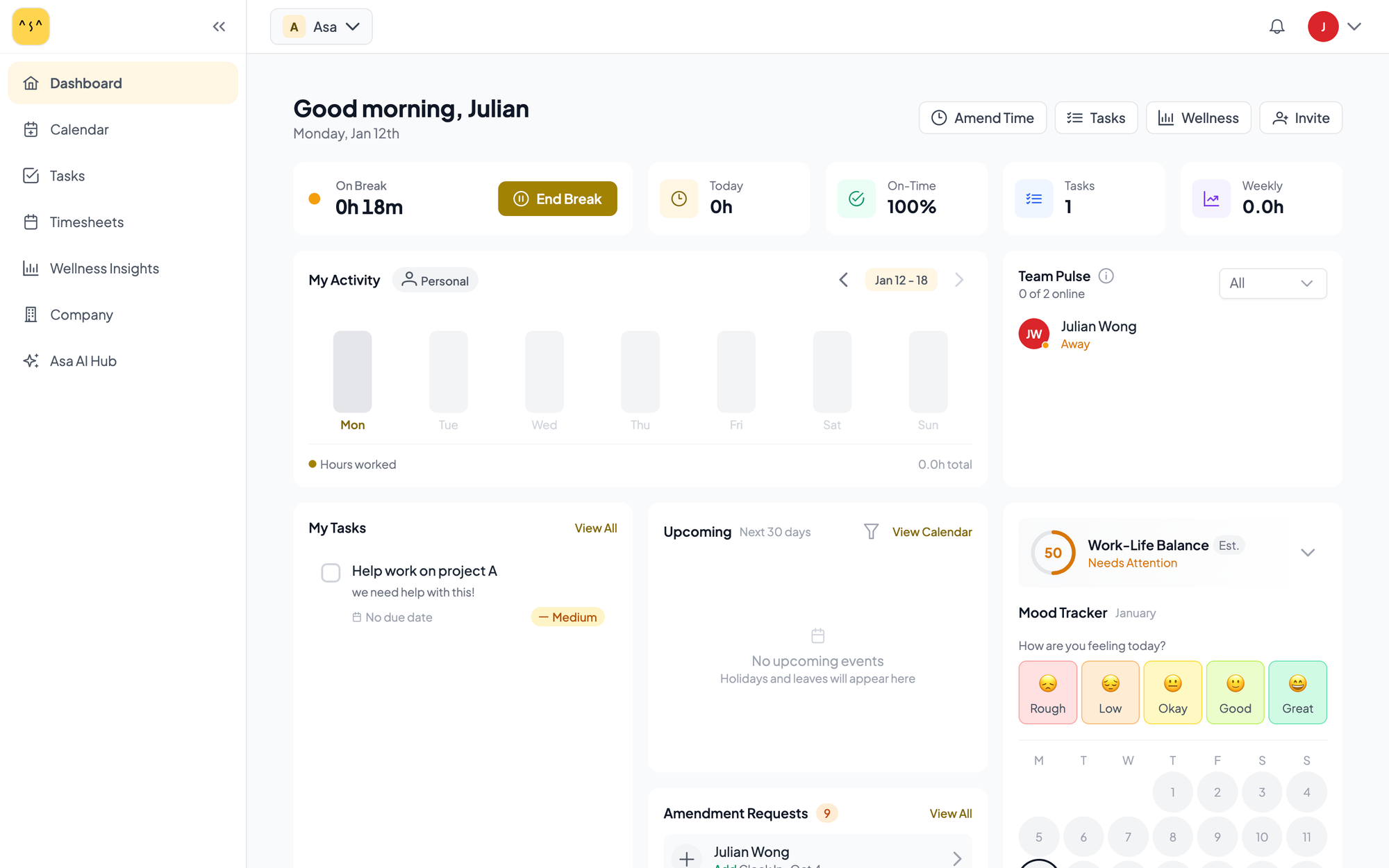
For teams who want this kind of visibility built into their daily workflow automatically, tools like Asa surface blocked tasks and overloaded owners proactively—so you're not waiting until standup to find out.
Quick customizations: add columns, filters, and color rules
Add only the columns you’ll actually use. Popular additions include:
- Priority (P1, P2, P3) for triage
- Effort (story points or hours) for capacity planning
- Risk (Low/Med/High) with an optional Mitigation note
- Notes for brief context and links
When adding a column, keep data types strict (e.g., dropdown for Priority, number for Effort) to protect sort and filter behavior. Place new fields to the right of core schedule data so date math and Gantt formulas remain intact. If you need a custom calculation (like Remaining Days), keep formulas consistent down the column and lock header cells to prevent accidental edits.
Filters make the sheet feel like an app. Save common views such as “Owner = Alex AND Status ≠ Done,” “Blocked tasks,” or “Due this week.” In Google Sheets, use Filter Views to preserve personal slices without disrupting teammates; in Excel, create Custom Views or use Slicers on formatted tables for rapid toggling.
Color rules should be signal, not decoration. Examples:
- Status-based: Done = muted green, Blocked = red
- Date-based: End date within 3 days and not Done = amber
- Owner highlight: light tint per owner to improve scan-ability
Test rules on a small sample, then apply sheet-wide. If a view starts to look noisy, collapse to two or three rules max. The goal is to draw the eye to risk and urgency, not to rainbow the page.
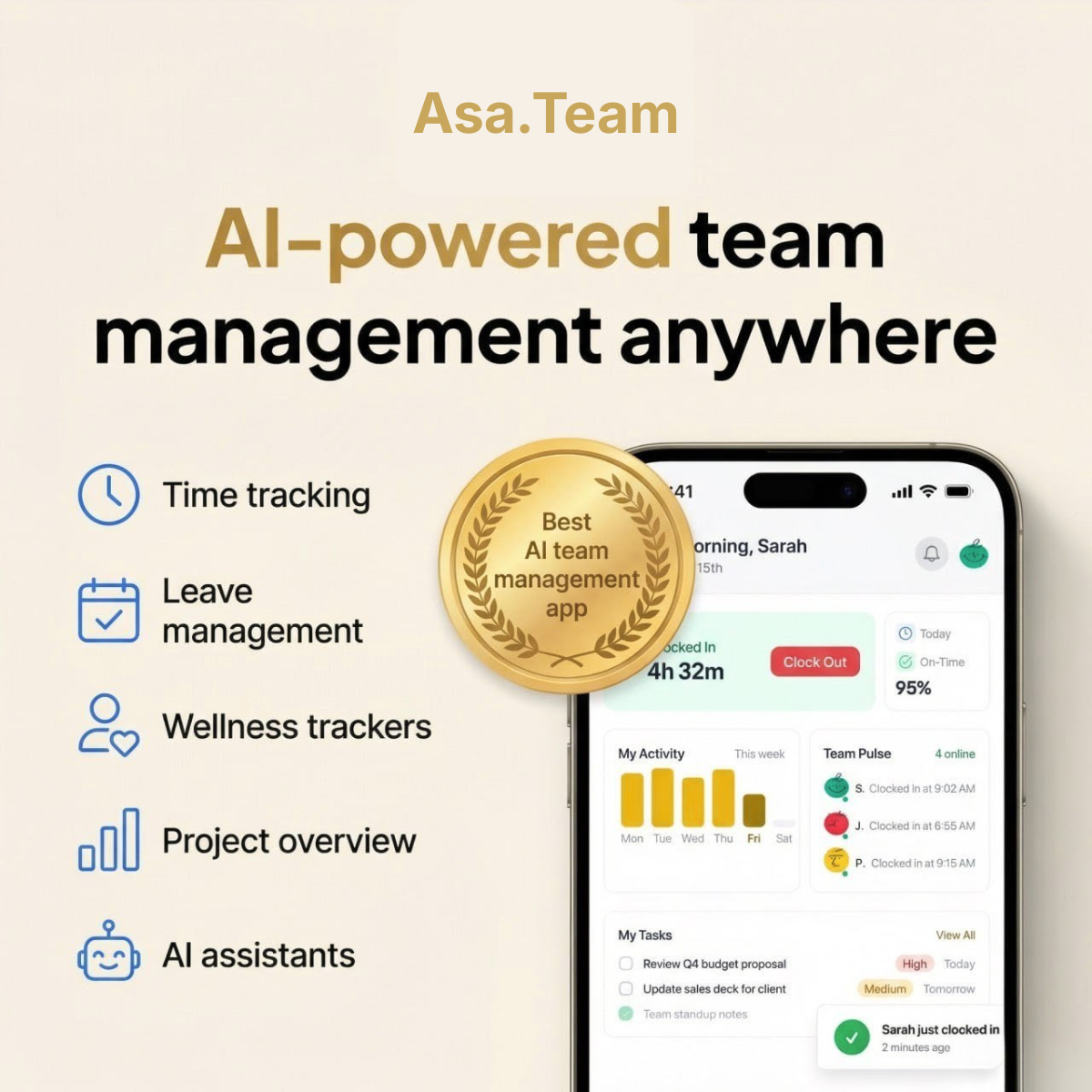
When your project tracking needs to go beyond a spreadsheet—with real-time updates, AI-assisted status summaries, and automatic owner notifications—Asa is built for exactly that: it keeps the same lightweight task and owner model you've set up here, but automates the follow-up so nothing slips through the cracks.
In short, you now know what each field controls, how to read the timeline and task list, and which simple tweaks make the template yours. If you're just getting started, jump to How to Use the Template (Quick 5-Step Guide) to set up your first plan fast, then return here to layer in smart filters and color rules.